

01 · Full page
Full Page Screenshot
Capture a scrolling webpage from top to bottom in one image.
Smart Screenshot & Web Capture
Take a full page screenshot, capture the visible browser area, or select one region. SnapFlow saves each capture automatically to local screenshot history.
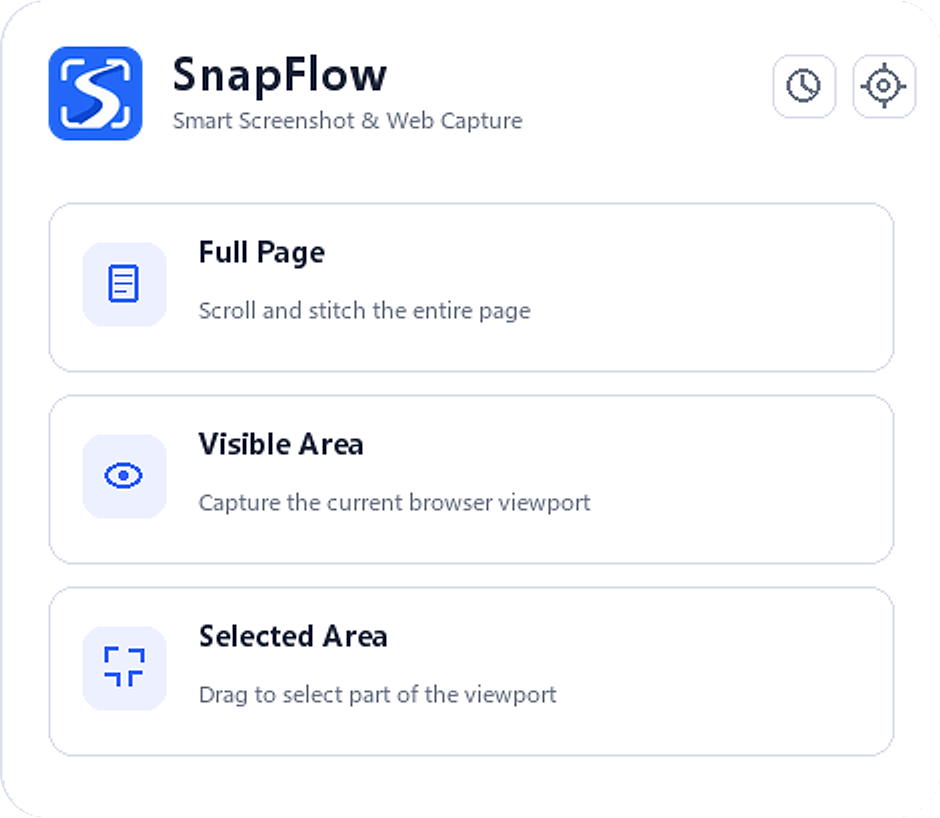
Three ways to capture
Choose the capture area that fits the webpage and the detail you want to save.
01 · Full page
Capture a scrolling webpage from top to bottom in one image.
02 · Viewport
Capture what is currently visible in the browser viewport.
03 · Selection
Select and capture only the part of the webpage you need.

Built-in screenshot history
SnapFlow saves each screenshot automatically, along with useful context from the webpage where it was captured.
Saved automatically
From local history, you can

Local-first by design
SnapFlow keeps screenshot content and history locally. Screenshot content is not uploaded to a SnapFlow cloud service.
Install SnapFlow and start capturing without creating an account or signing in.
Your captures and their history are stored on your device.
SnapFlow does not upload your screenshot content to a SnapFlow cloud service.
Optional anonymous analytics are off by default.
A focused workflow
Capture and revisit a webpage without adding an account or a separate cloud workflow.
Choose Full Page, Visible Area, or Selected Area.
SnapFlow captures the webpage and saves the screenshot automatically.
Open local history to preview, copy, download, or delete the capture.
For everyday web capture
Keep a visual record of the webpages and details you need to revisit.
Capture articles, guides, receipts, or reference pages in one image.
Save the current state of a webpage together with its source context.
Keep visual research material and the page it came from close together.
Preserve useful webpage layouts and visual references for later review.
FAQ
Clear answers about capture modes, local history, and browser support.
A full page screenshot captures the scrollable webpage from top to bottom in a single image, not only the area currently visible.
Yes. Choose Full Page Screenshot to capture the scrollable webpage as one image. Results can vary on pages with unusual layouts or browser restrictions.
Yes. Selected Area lets you choose one part of the page, while Visible Area captures the current browser viewport.
SnapFlow stores screenshots and screenshot history locally on your device.
No. SnapFlow does not upload your screenshot content to a SnapFlow cloud service.
No. SnapFlow does not require an account or sign-in.
Yes. SnapFlow is available for Google Chrome and Microsoft Edge through their official extension stores.
Browsers restrict extensions on certain internal pages, store pages, and other protected content. Those browser rules can prevent capture.
Ready when the webpage is
Choose Full Page, Visible Area, or Selected Area, then find the capture again in your local screenshot history.